UI: Difference between revisions
Jump to navigation
Jump to search
No edit summary |
No edit summary |
||
| Line 2: | Line 2: | ||
*Group files by - group files by input/output path. | *Group files by - group files by input/output path. | ||
*Files tabs position - where to position tabs of the source files list. | *Files tabs position - where to position tabs of the source files list. | ||
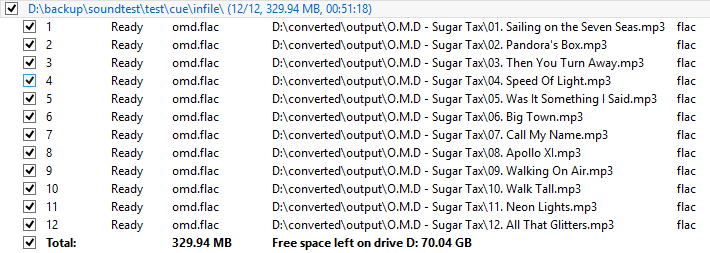
*Display CUE/Chapter files in a group - looks like [[media:Cue_grouping_on.png|'''this''']] when enabled and like [[media:Cue_grouping_off.png|'''this''']] when disabled. | *Display CUE/Chapter files in a group - looks like [[media:Cue_grouping_on.png|'''this''']] when enabled, and like [[media:Cue_grouping_off.png|'''this''']] when disabled. | ||
*Auto size files columns - columns are auto-sized so that texts fit in. | |||
*Auto size metadata columns - columns are auto-sized so that texts fit in. | |||
*Remove existing files from list when adding new ones - existing files will be removed when new ones are added. | |||
*Expand files list while processing - output settings will be hidden when process is started. Useful when display has low resolution. | |||
*Show progress bar in tab title - progress bar will be drawn in the title of the current tab. | |||
*Show progress window - looks like [[media:Progress_on.png|'''this''']] | |||
Revision as of 12:22, 14 August 2015

- Group files by - group files by input/output path.
- Files tabs position - where to position tabs of the source files list.
- Display CUE/Chapter files in a group - looks like this when enabled, and like this when disabled.
- Auto size files columns - columns are auto-sized so that texts fit in.
- Auto size metadata columns - columns are auto-sized so that texts fit in.
- Remove existing files from list when adding new ones - existing files will be removed when new ones are added.
- Expand files list while processing - output settings will be hidden when process is started. Useful when display has low resolution.
- Show progress bar in tab title - progress bar will be drawn in the title of the current tab.
- Show progress window - looks like this